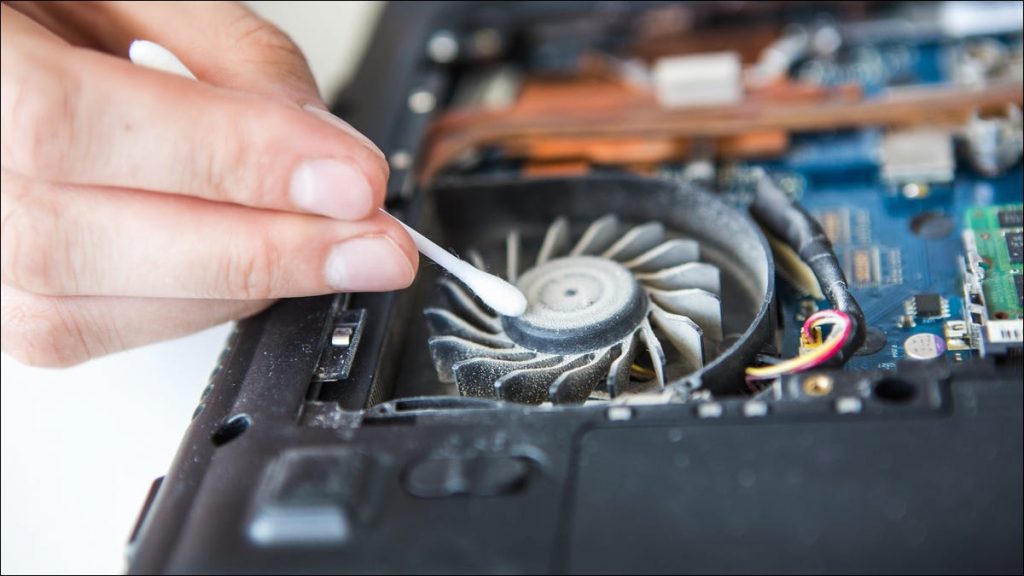
Heat is a normal byproduct of laptop operation. Processors and graphics chips generate significant amounts of it, and every laptop contains a cooling system specifically designed to move that heat away from sensitive components and out through the vents. The problem arises when that system can't keep up — either because it's obstructed, degraded, or simply undersized for the workload being asked of the hardware.
Overheating is one of the more common issues we see in the workshop, and it takes several different forms. Some laptops run hot constantly; others only hit thermal limits under specific workloads. Some shut down unexpectedly as a protective measure; others simply throttle performance without the user realising. Understanding the causes can help you manage the issue before it leads to hardware damage.
How Laptop Cooling Actually Works
Most laptops use a combination of a heat pipe, fan, and heatsink to manage thermals. The heat pipe is a sealed copper tube containing a small amount of fluid. Heat from the CPU (and sometimes GPU) causes the fluid to evaporate at the hot end and condense at the cool end, transferring thermal energy to a heatsink or fin stack. The fan then blows air across the fins and out through the vents.
This system is effective when it's clean and intact. Over time, dust accumulates on the fan blades and between the heatsink fins. Even a moderate buildup significantly reduces airflow and makes the cooling system work harder to maintain acceptable temperatures. In some cases, the thermal paste — a compound that fills microscopic gaps between the CPU die and the heat pipe contact — dries out and loses conductivity, which is another common cause of elevated temperatures in older laptops.
Worth knowing: A laptop running 10–15°C hotter than it should doesn't just feel uncomfortable — it affects component lifespan. Sustained elevated temperatures accelerate electromigration in circuit traces and can shorten the useful life of the storage drive, RAM, and eventually the CPU itself.
Common Causes of Overheating
Dust Accumulation in Vents and Fans
This is by far the most frequent cause we see. Laptop fans pull air in through intake vents (usually on the bottom) and exhaust it through side or rear vents. Over time, dust, pet hair, and fibres from soft surfaces build up inside. On many laptops, a dense layer of dust collects specifically at the heatsink fins — essentially forming an insulating mat that hot air can no longer pass through efficiently.
The fix is straightforward: careful cleaning of the fan and heatsink. For most laptops, this requires opening the bottom panel. How accessible the fan assembly is varies by model, but for laptops that run hot, internal cleaning every 12–18 months is reasonable preventive maintenance.
Degraded Thermal Paste
Thermal paste bridges the microscopic surface irregularities between the CPU (or GPU) die and the metal contact plate of the heat pipe. New thermal paste is soft and fills these gaps effectively. Over several years, it dries out, becomes crumbly, and loses thermal conductivity. When this happens, heat transfer from the chip to the pipe becomes less efficient, and temperatures climb even without any fan obstruction.
Repasting — removing the old compound and applying fresh paste — often produces a noticeable temperature drop on laptops that are three or more years old and running hot. It's a bit more involved than just cleaning the vents, but for laptops where dust removal alone doesn't resolve the overheating, it's often the next logical step.
Usage on Soft or Obstructed Surfaces
Most laptops draw intake air from vents on the bottom panel. Using the laptop on a bed, couch cushion, or any soft surface blocks these vents and immediately impairs airflow. In some cases, the laptop will compensate by running the fan at higher speeds; in others, temperatures simply climb. It's a simple issue but genuinely common — worth mentioning even if it seems obvious.
Sustained High-Demand Workloads
Laptops are designed with thermal limits, and running CPU- or GPU-intensive tasks for extended periods pushes against those limits. Thin and light laptops, in particular, often have cooling systems that can handle brief bursts of performance but will throttle under sustained load. This is by design rather than a fault — the processor slows itself down to prevent overheating. If you're regularly doing video rendering, gaming, or other sustained intensive work on a thin laptop, periodic thermal throttling is expected behaviour.
If a laptop that previously handled these workloads without issue is now throttling or shutting down, dust buildup or degraded thermal paste is usually the culprit rather than the workload itself.
Fan Failure
Laptop fans do eventually fail. A fan that's beginning to fail may make grinding, rattling, or clicking sounds before it stops working entirely. A laptop running without a functional fan will heat up rapidly and either throttle severely or shut down. If your laptop is noticeably louder than usual, or conversely quieter than expected under load, the fan is worth checking.
Warning Signs to Watch For
The most obvious indicator is the bottom of the laptop becoming uncomfortably hot — particularly near the fan exhaust area. Other signs worth paying attention to:
- Fan running loudly and continuously, even during light tasks
- System slowdowns during tasks that used to run smoothly (thermal throttling)
- Unexpected shutdowns, particularly during demanding applications
- Error messages referencing CPU temperature limits
- The fan sounding different than usual — grinding, intermittent, or absent
Free temperature monitoring tools like HWMonitor (Windows) or iStatMenus (macOS) let you see actual CPU and GPU temperatures. Under light load, temperatures in the 40–60°C range are typical; under sustained load, 70–85°C is common for most laptops. Consistent readings above 90°C under any workload generally indicate a thermal management issue worth addressing.
Practical Steps You Can Take
On a day-to-day basis, a few habits make a meaningful difference. Use the laptop on hard, flat surfaces rather than soft ones. If you regularly use it in dusty environments, consider cleaning the vents more frequently. Avoid blocking the exhaust vents with objects placed next to the laptop.
If you're comfortable opening the bottom panel, compressed air can be used to clear visible dust from the fan and vents — though this should be done carefully, holding the fan blades stationary to avoid spinning it faster than it's designed to go.
For a more thorough cleaning or thermal paste replacement, particularly on laptops that are 3+ years old and running hotter than they used to, a professional service is worth considering. It's straightforward preventive maintenance that can extend the useful life of the hardware.
When Professional Help Makes Sense
If cleaning the vents externally hasn't improved things, if the laptop is making unusual fan noises, or if thermal throttling is affecting your ability to use the machine, it's worth having it looked at. Internal cleaning and thermal paste replacement are routine work that often makes a noticeable difference — they don't require replacing major components and are generally reasonable in cost relative to what they address.
The main thing to avoid is simply running a laptop that's clearly overheating without doing anything about it. Extended heat stress does accumulate, and components that might otherwise last many more years can fail prematurely.
Have an overheating laptop?
We handle internal cleaning and thermal paste replacement as routine service. Bring it in and we'll assess what's needed.
Contact Us